


Microsoft SharePoint
4.01.06K Reviews
App Specs
- Version
- 4.00.00
- Updated On
- License
- Free
- Downloads
- 10,000,000+
- Developer
- Microsoft Corporation
- Categories
- Productivity
- Platform
- Android, iOS
Screenshots
 Analysis by AppCompare
When I first opened Microsoft SharePoint, I had to adjust my expectations. This is not a household organizer, a family chat app, or a simple place to throw personal files. It is a productivity app built around the SharePoint spaces used by an organization, so its usefulness depends heavily on whether your work, school, club, or community already relies on Microsoft’s platform. Once that boundary is clear, the app becomes much easier to judge.
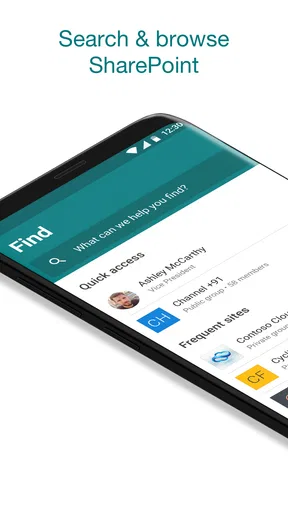
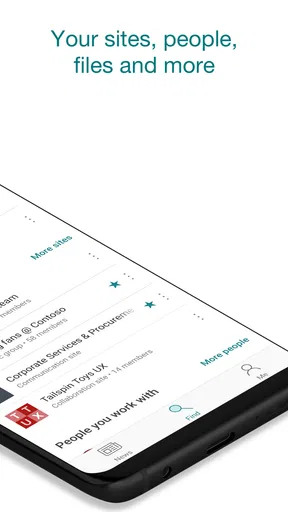
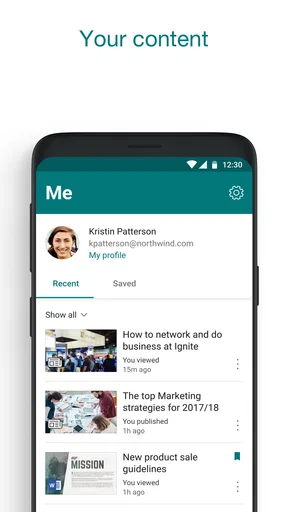
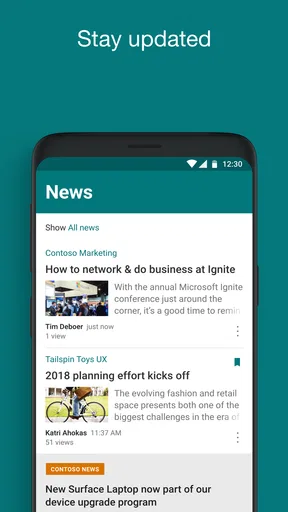
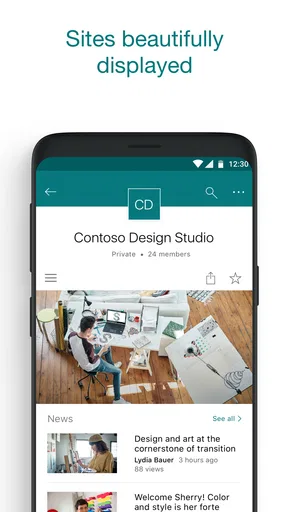
In everyday use, I found it most valuable as a mobile doorway into information that is otherwise scattered across team sites. It can bring together relevant sites, news, files, and people, with the experience shaped around the organization connected to your account. That makes it practical when I need to check a document, read an internal update, or find the right colleague without sitting at a desktop.
It is free to install, aimed at Everyone, and developed by Microsoft Corporation. The app has a 4.0 average from around 34 thousand ratings, with more than 10 million installs, so it is clearly established rather than experimental. Those figures do not make it automatically right for every person, though. The key question is simple: does your organization already use SharePoint in a meaningful way?
How SharePoint fits into a shared household device
A realistic shared-device example helps explain the app better than a feature list. Imagine a family tablet used by one parent for work, another adult for volunteer coordination, and a student for school-related material. SharePoint may be useful for one of those people, but it should not be treated as a common family filing cabinet. Each person’s work environment belongs to their own organization and account context.
That distinction is important because the app is designed to surface organizational content, not to merge everyone’s personal documents into one friendly household space. If I am checking a team site from a shared tablet, I need to remember that the information I see is connected to my work or school relationship. The next person using the device should not simply continue from my session as if the app were a shared calendar.
For a household that already uses Microsoft 365 or SharePoint at work, the app can reduce the need to open a browser and search through bookmarks. I can move from a relevant site to a recent file or an internal news item with less friction. For a family that only wants grocery lists, chore planning, photo sharing, or private document storage, this is the wrong tool. A consumer-focused notes, cloud-storage, or family-planning app will usually feel more natural.
The shared-device angle also exposes one of SharePoint’s strengths: it keeps organizational information separate from casual household content. That separation may feel less convenient when someone wants one universal app for everything, but it is healthier for work boundaries. I would rather keep a project document in its intended organizational space than mix it with personal photos and family paperwork.
Worth Reading Before You Choose

EA SPORTS FC Mobile 26 Is a Bigger Football Game, but It Takes Time

Flipboard Shows What News Apps Must Do Beyond the Feed

Switching to Android Auto Means Rethinking Your Driving Routine

Google Calendar Makes a Crowded Week Easier to Manage

Ludo King Makes the Most of the Minutes Between Plans

Baby Panda World Brings Quick Play to Modern Phones, but Its Game Library Feels Busy
What I would check before installing it
Before I recommend the app, I ask whether the person already has a reason to access a SharePoint environment. The store summary describes personalized access to sites, news, files, and people for you and your organization. In practice, that means the app becomes useful after an organization has created and shared content. Installing it alone does not create a useful workspace out of thin air.
This is one of the most important trade-offs. A new user may expect a blank productivity app where they can immediately build folders and lists for personal life. Instead, the experience makes sense when there is an existing organizational structure behind it. If your employer, school, or group has not directed you to SharePoint, you may open the app and wonder what problem it is supposed to solve.
The minimum operating-system requirement is 8.1, which gives the app a broad compatibility range on supported devices. The current version is 4.00.00. I would still treat compatibility as only the first check. The more significant preparation is knowing which account to use and understanding whether your organization expects mobile access to its sites and files.
Keeping account boundaries clear
On a shared phone or tablet, I would avoid treating account switching as an afterthought. A person should finish their work session deliberately rather than hand over the device with SharePoint open. This is not because the app is a family-management tool; it is because organizational content deserves the same care as email, work chat, and other private services.
I also recommend deciding in advance which account belongs to which role. If one adult has a work account and another has a volunteer organization account, mixing those identities can make the app feel confusing. The personalized home experience is helpful when it reflects one person’s organization, but less helpful when several people repeatedly use the same profile.
That is a non-obvious strength of the app: personalization is not merely visual decoration. It can shorten the path to the sites and people that matter to a particular work context. The corresponding weakness is that a shared-device setup can undermine that clarity. The app works best when one user has a stable account boundary and a clear reason to return.
Finding information and coordinating with other people
The most convincing part of SharePoint is the way it connects different kinds of organizational information. Instead of thinking only in terms of files, I think of it as a mobile map of a workplace or group’s internal knowledge. Sites provide the larger context, news supplies updates, files hold working material, and people connect the information to the individuals involved.
That combination matters when I am away from my desk. Suppose I am on the way to a community meeting and need to confirm the latest agenda. I may begin with the relevant site, notice a recent update, open the associated file, and identify the person responsible for the next step. The value is not that any single action is unusual; it is that the app brings those related paths closer together.
For coordination, I found it useful to treat SharePoint as a place to verify information rather than as a replacement for every communication channel. A site or news post can tell me what the organization has published. A file can show the current working material. A person entry can help me understand who is connected to the work. If a decision needs a live conversation, I would still use the communication tool my group has chosen.
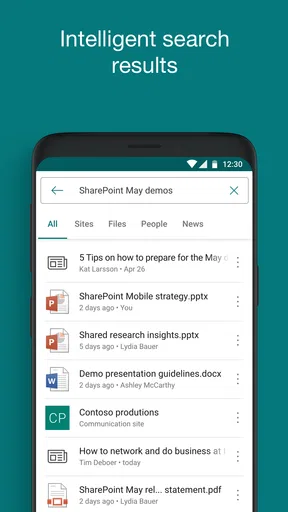
This leads to a practical tip: when looking for a document, start from the site or news item that gives it context instead of relying only on memory of the filename. Organizational libraries often contain similarly named files, and context can be more reliable than a quick keyword search. SharePoint’s strength is especially visible when the content has been arranged thoughtfully by the organization.
Where the mobile experience saves time
I see the app as most useful for short, targeted visits. Checking a notice before a meeting, opening a reference file while travelling, or locating a colleague’s organizational page are all tasks that suit a phone. The mobile format is less intimidating than opening a full desktop workspace when I only need one answer.
Another useful workflow is reviewing news before opening files. An update may explain that a document has changed, point to a new process, or identify which site is relevant. That small habit reduces the chance of using an old file simply because its name looks familiar. It also helps me understand whether a document is informational, active, or tied to a particular project.
There is a trade-off, however. A phone screen is convenient for checking and light interaction, but it is not the ideal place for deep document work or complicated site administration. If my task involves comparing several files, reorganizing a large body of content, or carrying out detailed editing, I would move to a desktop browser or the dedicated Microsoft app better suited to that task.
That is where SharePoint differs from simpler cloud-storage alternatives. A basic storage app may feel faster when I only want a personal folder and a file. SharePoint offers more organizational context, but that context can also make it feel heavier. I would choose it for structured team information, not merely because I need somewhere to save a PDF.
Coordination without turning the app into a family organizer
The household scenario becomes more interesting when several people coordinate through separate organizations. One parent might use SharePoint for work, while another uses it for a local association. The app can support each person’s own responsibilities, but it does not replace a shared family calendar or a common task list. I would keep household logistics in an app designed for that purpose and use SharePoint for the organizational material behind each person’s commitments.
This separation can actually make coordination cleaner. A meeting agenda, volunteer policy, or work checklist stays with the group that owns it. The family can discuss timing separately without copying sensitive or changing organizational content into a personal app. In my experience, that reduces the risk of outdated duplicates.
A useful habit is to share only the necessary conclusion at home rather than exporting an entire organizational file. For example, I might tell someone the meeting time while leaving the full internal document inside the proper SharePoint site. This is not a special family feature; it is simply a sensible way to respect account and information boundaries.
Age, trust, and the question of who should use it
The Everyone content rating means the app is not presented as age-restricted entertainment. That does not mean every piece of information accessed through it is suitable for every household member. The app is a doorway into an organization’s content, and the nature of that content depends on the account and the group behind it.
For that reason, I would not hand a child a signed-in work or school account and assume the general age label answers every privacy question. The important issue is trust: who owns the account, who controls the organization, and who is allowed to view the sites and files connected to it? Those decisions belong to the account and organization context, not to a family-friendly presentation layer.
For an adult employee, student, or volunteer, the app can be a sensible mobile companion when the organization has already established SharePoint as part of its workflow. For a younger user, I would want a clear account arrangement and an adult understanding of what the organization has made available. The app itself should not be mistaken for a parental-control system or a shared family account manager.
This is another place where trust affects the experience. SharePoint is valuable because it can connect people with information that matters to their work. That same connection means I would be careful on a borrowed device, a family tablet, or any phone used by several people. Convenience should not erase the distinction between personal, school, volunteer, and professional identities.
Who will appreciate it most
I would recommend SharePoint to someone who regularly needs mobile access to an established organizational site. It suits people who check internal news, consult team files, locate colleagues, or move between several related areas of one organization. It is also a good fit for users who dislike digging through a browser for the same work resources repeatedly.
I would be more cautious with someone who wants a private personal productivity system. If the goal is journaling, household planning, simple file backup, or a personal knowledge base, SharePoint introduces organizational concepts that may not provide any benefit. A lighter app will probably require less setup and fewer decisions.
I would also skip it as a primary tool for heavy content creation on a phone. The app can help me reach information while mobile, but a desktop environment remains more comfortable for long writing sessions, extensive file management, and work that depends on seeing several items at once. Its best role is access and orientation, not replacing every part of a full office workflow.
My household verdict after using it
SharePoint makes sense in a household when each user treats it as a personal gateway to an organization, not as a communal family shelf. I like the way it can connect sites, updates, files, and people in one mobile experience. That structure is genuinely useful when I need a quick answer from a work or group environment and do not want to navigate a full desktop setup.
Its limitations are just as clear. The app can feel unnecessary without an existing SharePoint-based organization, and it is more complex than consumer tools built for personal storage or family coordination. Shared-device use also demands discipline around account boundaries. I would not choose it to solve household planning, and I would not expect the Everyone rating to explain the sensitivity of the content behind a particular account.
Compared with ordinary cloud storage, SharePoint offers richer organizational context but asks more from the user. Compared with a browser, it provides a more focused mobile route into the organization’s spaces. Compared with family productivity apps, it is far less suitable for shared domestic tasks. Those comparisons define its proper place better than a simple list of features.
My honest recommendation is straightforward: install it if your employer, school, club, or community already uses SharePoint and you need dependable mobile access to that environment. Keep your account separate on a shared device, use the relevant site as your starting point, and treat the app as a way to find and verify organizational information. If you only need personal files or family coordination, choose a simpler alternative. For the right user, Microsoft’s app is a practical bridge between a phone and a structured organization; for everyone else, it may be more infrastructure than they need.
Pros
- Seamless integration with Microsoft 365 apps and services.
- Strong permission controls help protect sensitive company content.
- Offline access lets users view selected files without a connection.
- Powerful search makes finding documents
- sites
- and people easier.
- Push notifications keep users updated on shared content and activity.
Cons
- Some features require a Microsoft 365 business or enterprise subscription.
- The interface can feel complex for users unfamiliar with SharePoint.
- Performance may vary when browsing large document libraries.
- Mobile editing tools are more limited than the desktop experience.
- Frequent notifications can become distracting in busy team sites.
FAQs for Microsoft SharePoint
What is Microsoft SharePoint used for?
Microsoft SharePoint is a collaboration and document-management platform designed for organizations and teams. It lets you access shared files, company news, team sites, lists, announcements, and other work resources from a mobile device. In my experience, it is most useful when your workplace already relies on Microsoft 365, because SharePoint connects closely with tools such as Teams, OneDrive, and Microsoft Office.
Can I use the Microsoft SharePoint app without a work or school account?
The Microsoft SharePoint app is primarily intended for business, education, and organizational accounts. You generally need access to a SharePoint site provided by your employer, school, or another organization using Microsoft 365. A personal Microsoft account may not provide access to the same features. Before downloading, confirm that your organization has enabled SharePoint and that you have valid sign-in credentials.
What can I do with SharePoint on Android or iPhone?
The mobile app allows you to browse organizational sites, open and share documents, read news posts, view activity, search for content, and access frequently used resources while away from your computer. Depending on your organization’s configuration and permissions, you may also interact with lists and pages. Some advanced editing and administration tasks are still more convenient in the web or desktop versions.
Is Microsoft SharePoint difficult to use on a mobile device?
SharePoint’s mobile interface is reasonably straightforward once your organization’s sites are configured correctly. Navigation is based on sites, news, files, and search, although the amount of content can feel overwhelming in large organizations. Your experience also depends on how well administrators organize permissions and pages. New users may need a short introduction to understand where documents and team resources are stored.
Is Microsoft SharePoint safe for storing and accessing company files?
SharePoint includes enterprise security features such as account authentication, permission-based access, organizational controls, and integration with Microsoft 365 security policies. However, the app itself does not guarantee that every file is protected automatically; administrators determine access and sharing settings. You should use a secure device, keep the app updated, avoid sharing sensitive links carelessly, and follow your organization’s security and sign-in requirements.


